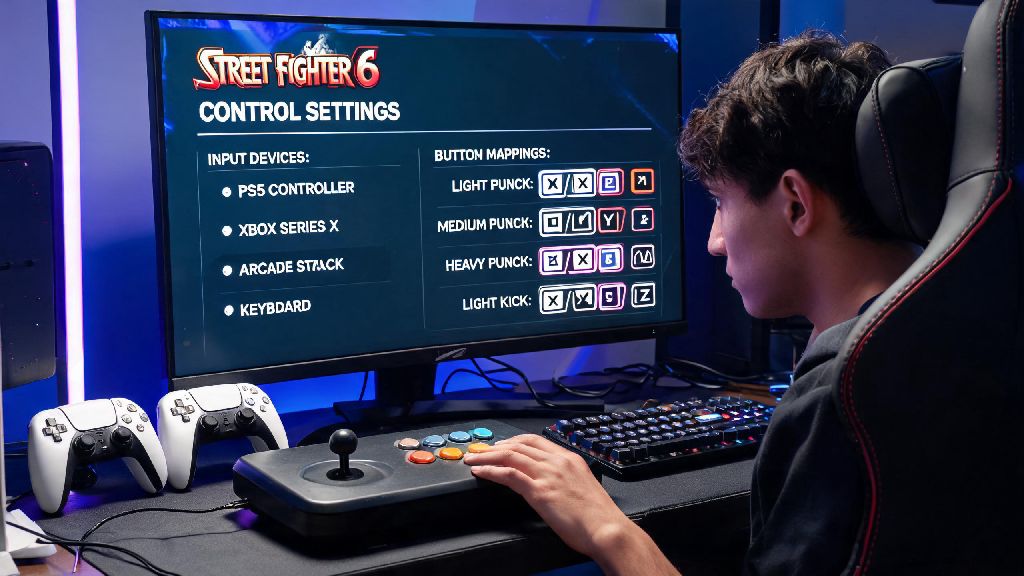
If you’ve jumped into Street Fighter 6’s still-thriving 2026 ranked queues or local tournament circuits, you’ve probably noticed that default control settings rarely fit your unique playstyle or hand size. I learned this the hard way last month at a small regional tourney, where I missed a crucial Dragon Punch input against a top-tier Jamie player because my pad’s default heavy punch button was too far out of reach for my smaller hands. Knowing how to change controls in Street Fighter 6 isn’t just a nice quality of life tweak – it’s one of the fastest ways to cut down on accidental inputs and climb ranks faster, no matter what input device you use.
How to Change Controls in Street Fighter 6 for All Platforms in 2026
Capcom hasn’t shifted the core options menu layout in any 2026 patches, so the remapping process works the same across PS5, Xbox Series X/S, and PC, regardless of whether you’re using a standard pad, fight stick, hitbox, or keyboard. You don’t need any external software to make changes, and you can save up to 5 custom control presets per input device, so you can switch between setups for different characters or game modes in seconds. The step-by-step process is identical for all control types, including Classic, Modern, and Dynamic schemes:
If you’re playing on PC, you can also back up your custom presets to a cloud drive or USB stick, which comes in handy if you’re playing at a friend’s house or a tournament venue. You don’t have to restart the game for changes to take effect, so you can test tweaks right away in training mode.
Popular Custom Control Presets to Test in 2026
There’s no one “best” control setup for SF6, but there are a few common preset tweaks that top players have been refining since the game launched, that are still widely used in 2026 competitive play. The right setup for you will depend on your main character, input device, and personal comfort, but these are great starting points if you’re tired of default settings.
First, charge character optimized presets are perfect if you main characters like Guile, Blanka, or Dee Jay. Most players who use these presets map the down-back input to a rear shoulder button, so you don’t have to hold the direction for long periods of time while waiting for an opening to use a charge special. This cuts down on hand cramping during long sets, and makes it far easier to pull off charge moves while moving forward.
If you use Modern controls, you’ll want to try simplified special tweak presets that move the auto-special button to a less accessible spot, or remove it entirely. A lot of new Modern players accidentally trigger auto-specials when they’re trying to press a normal attack, so moving that button to a side shoulder you don’t use often eliminates that issue entirely.
For hitbox users, the most popular 2026 preset maps all three punch buttons to a single adjacent cluster, and all three kick buttons to another cluster right next to them. This makes it far easier to pull off drive rushes, drive impacts, and super combos that require pressing multiple buttons at the same time. If you want to see exactly what pro players are using for their main characters this year, you can check the official Capcom 2026 pro player control preset database, which is updated monthly after major tournaments.
Just make sure any preset you use follows tournament rules if you plan to compete – most 2026 SF6 events ban macros that execute multiple inputs with a single button press, so stick to simple button remaps only.
Common Mistakes to Avoid When Remapping Your SF6 Controls
It’s easy to get carried away when you first start remapping buttons, but small mistakes can cost you matches before you even realize what’s wrong. I’ve made almost all of these mistakes myself over the years, so you don’t have to.
The biggest error new players make is mapping two high-priority actions to the same or adjacent buttons. I once mapped throw and drive rush to the same shoulder button when I was testing a new preset for my Ken main, and I ended up throwing three times in a row when I meant to rush down my opponent, costing me the entire set. Keep high-priority actions like throw, drive impact, and parry on separate buttons that are far enough apart that you won’t press them by accident.
Another common mistake is copying a pro player’s preset word for word without testing it first. Just because a top 8 Evo 2026 player uses a certain setup for their Chun-Li main doesn’t mean it will work for you. Pro players often have larger hands or years of muscle memory with unusual layouts, so what works for them might feel completely awkward for you. Test any preset you copy for at least a few hours in casual matches before you take it into ranked or tournament play.
Don’t forget to save your presets to a separate custom slot either. The 2026 winter update added 2 extra custom preset slots, so you have no excuse for overwriting your main setup when you’re testing a new one. I keep one preset for ranked play, one for casual matches with friends, one for charge characters, and one for when I’m testing new characters, so I never have to re-map buttons from scratch.
Finally, don’t change your control setup 24 hours before a tournament or a high-stakes ranked run. Muscle memory takes at least 3 to 5 days to fully adjust to new button mappings, so you’ll likely play far worse immediately after a big change.
How to Test Your New Control Setup for Optimal Performance
Once you’ve mapped your buttons the way you want, you don’t want to jump straight into ranked play without testing first. A few simple tests will catch any issues with misaligned buttons or input lag before they cost you matches.
Start in training mode, and try to pull off 10 consecutive special moves for your main character, followed by 10 drive rushes, 10 drive impacts, and 10 throws. If you miss more than 1 or 2 inputs out of 10, you might want to adjust your button placement to make those actions easier to reach. You should also test a few super combos, since those require pressing multiple buttons at once, and are the easiest moves to mess up if your buttons are mapped poorly.
Next, play 3 to 5 casual matches against level 8 CPUs, or against a friend in player matches. Pay attention to any accidental inputs you make – if you keep pressing parry when you mean to press heavy kick, that’s a sign you should move one of those buttons to a different spot. You should also check input delay numbers in the training mode display after you remap your buttons. If you notice input delay jumping by more than 1 or 2 frames, you might have accidentally enabled a macro you don’t need, or have a faulty input device.
If you plan to compete in 2026 tournaments, bring a copy of your custom preset saved to a USB stick with you to the venue. Most tournament setups let you load custom presets directly from a USB, so you won’t have to spend 10 minutes remapping buttons before your set starts. Just make sure you show your control settings to the tournament organizer before your set, to confirm you’re not using any banned macros.
At the end of the day, the best control setup for Street Fighter 6 is the one that feels most natural to you, and lets you play your best without worrying about missed inputs or hand cramping. Taking 10 minutes to learn how to change controls in Street Fighter 6 and tweak your settings to fit your playstyle is one of the highest ROI changes you can make to your game, whether you’re playing casual matches with friends or climbing to Master rank in 2026’s competitive queues. Don’t be afraid to make small tweaks over time – I still adjust my drive impact button placement every few months when I notice my hands cramping during long sets, and it’s made a huge difference in my win rate over time.