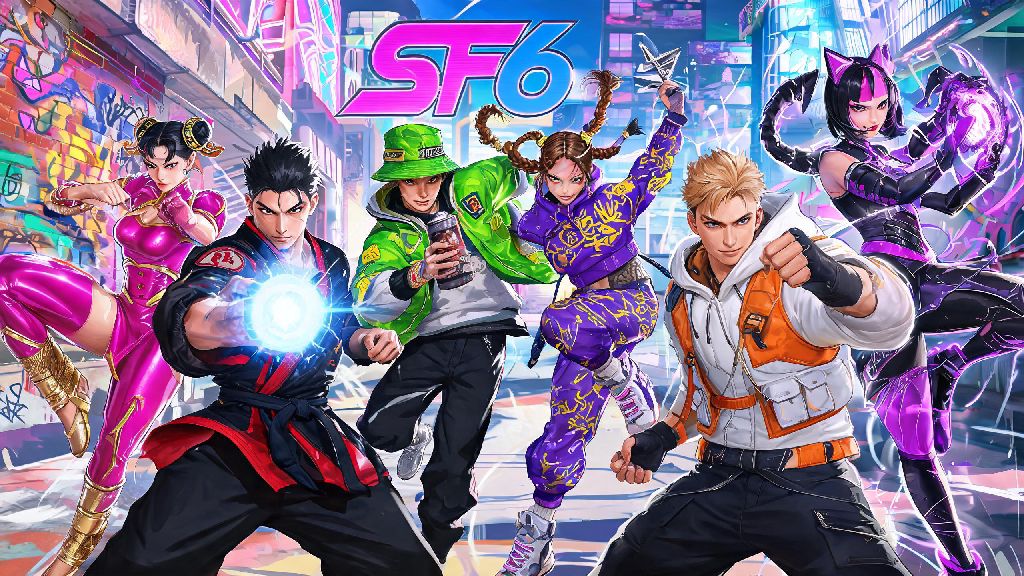
If you’ve spent hours grinding ranked matches and are bored of seeing your main in the same default gear every round, you’re far from alone. Most new players overlook the game’s robust customization tools for their first few hours of play, and many struggle to find the right menus even when they know cosmetic options exist. This guide breaks down exactly how to change outfits in Street Fighter 6, plus how to unlock rare skins, tweak color schemes, and fix common glitches that stop your custom looks from loading. I spent my first 12 hours of playtime rocking default Ryu before I stumbled on the customization menu, so I built this walkthrough to save you the same frustration.
Step-by-Step Process to Change Outfits in Street Fighter 6
The process for switching up your character’s look varies slightly depending on which game mode you’re playing, but the core steps are consistent across all platforms, including PC, PlayStation 5, and Xbox Series X/S. You don’t need to earn any special rewards to access the outfit change menu, even if you only have default skins unlocked so far. Just make sure you’re not in an active match queue before you start editing, as you can’t make changes once you’ve signed up for a fight.
Follow these simple steps to swap outfits in seconds:
If you’re playing World Tour, note that you have to change your custom avatar’s outfit separately from the master characters you summon for fights. Avatar clothing is found in the "Appearance" tab of your World Tour profile, not the main outfit selection menu. That’s the most common mistake new players make when they first try to edit their look.
How to Unlock New Outfits for Every Character
Changing outfits is fun, but it’s even better when you have more than just the default skin to choose from. Street Fighter 6 has three core outfit tiers for every playable character, plus limited-time collab skins that drop during seasonal events. You don’t have to spend real money to unlock most of these options, either.
Outfit 1 is the default modern look for every character, available as soon as you buy the game. Outfit 2 is the fan-favorite classic look for each character, like Ryu’s original Street Fighter 2 gi or Chun-Li’s iconic blue qipao. The only free way to unlock Outfit 2 for every character is by maxing out Master Bond levels in World Tour mode. You raise Bond levels by completing side quests for your masters, giving them preferred gifts, and using their fighting style in battles. I unlocked Chun-Li’s classic outfit after three days of running her small delivery quests around Metro City, and it didn’t require any extra purchases at all.
Outfit 3 and limited collab skins are available through the in-game shop. You can buy them with either Fighter Coins (the paid premium currency) or Drive Tickets, which you earn for free by completing daily challenges, ranking up in online play, and finishing seasonal battle pass tiers. If you play consistently, you can earn enough Drive Tickets to grab every new non-collab outfit without spending a cent, so don’t feel pressured to pay for cosmetics if you don’t want to.
Customizing Outfit Colors and Accessories for Extra Flair
Once you’ve picked your favorite outfit, you don’t have to stick to the default color palette. Street Fighter 6 lets you tweak every part of your character’s look, from the shade of their shirt to the color of their gloves and shoes, so you can stand out even in crowded casual lobbies.
Default color palettes 1 through 10 are available for every outfit as soon as you unlock it. Extra rare colorways, like neon gradients and tournament-exclusive shades, are available as ranked match rewards and limited-time event drops. Once you unlock a color for one outfit, it’s available for all other outfits for that same character, so you don’t have to re-grind the same rewards for every skin. If you want to use custom colors in online play, make sure you turn on the Show Custom Skins option in your online settings, otherwise your game will default to base colors for all players.
For custom World Tour avatars, you have even more flexibility. You can mix and match tops, bottoms, shoes, hats, and small accessories like necklaces and face masks that you buy from shops across Metro City and Nayshall. You can even unlock rare clothing items by completing secret side quests and beating high-level enemy NPCs around the open world. My current avatar wears a custom neon hoodie and combat boots I picked up from a hidden shop in Nayshall’s market district, and I get comments on it almost every time I play online casual matches.
Common Outfit Change Issues (And Simple Fixes)
Even if you follow all the steps correctly, you might run into small glitches that stop your custom outfits from loading. These issues are almost always easy to fix, and you don’t need to contact support to resolve most of them.
The most common problem is outfits showing as locked even after you’ve completed the requirements to unlock them. This usually happens if you earned the outfit from a World Tour quest or ranked match reward and haven’t restarted your game yet. Restarting your game client fixes 90% of these sync issues, as the game doesn’t always immediately add new unlocks to your customization menu when you earn them mid-play session.
Another common issue is custom colors not showing up in online matches. First, double check that you have custom skins enabled in your online settings. If they are enabled and you still only see default colors, it’s likely that the opponent you’re playing against has custom skins turned off on their end, so they can’t see your custom look, but other players with the setting enabled will. You can’t force other players to see your custom outfits, so don’t take it personally if your neon pink Jamie skin doesn’t show up for a random opponent.
Finally, if you can’t find the outfit change option while you’re in a lobby, that’s intentional. The game doesn’t let you edit outfits while you’re in an active match queue or waiting for a lobby fight to start. Just back out to the main menu, make your changes, and rejoin the lobby when you’re done.
Learning how to change outfits in Street Fighter 6 is a small but fun way to make your play experience feel more personal, whether you’re a casual player who just likes cool skins or a ranked main who wants to stand out during tournament streams. Take time to grind World Tour to unlock classic outfits, experiment with wild color combinations, and don’t stress too much about buying premium skins unless you really love them. At the end of the day, the best outfit is the one that makes you feel confident before you land your first perfect KO.