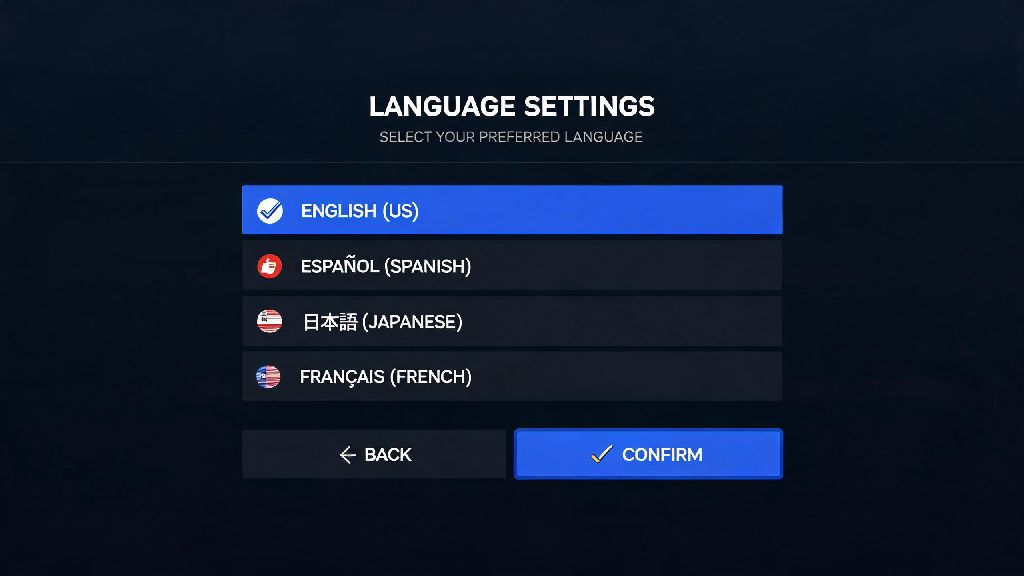
There’s nothing more frustrating than booting up a new copy of Street Fighter 6, ready to grind ranked matches or mess around in World Tour mode, only to find every menu line and character voice in a language you don’t understand. This issue hits most often if you imported a physical copy from another region, bought a digital copy from a foreign storefront, or have mixed region settings on your console or PC launcher. If you’ve ever found yourself stuck in this situation, learning how to change Street Fighter 6 language settings is a quick, low-effort fix that gets you back to playing in minutes. We’ve tested every method across all major platforms to cut through the confusing, outdated advice scattered across forum threads, so you don’t have to guess which steps actually work.
How to Change Street Fighter 6 Language Settings on PC, Consoles, and Handhelds
The process varies slightly depending on what device you’re playing on, but all methods take less than two minutes to complete, even if you can’t read the current on-screen text. We’ve ordered steps from the most common platforms to the least, so you can skip straight to the section that applies to you.
Steam PC steps: Start by opening your Steam library and right-clicking on the Street Fighter 6 listing in your game collection. Select “Properties” from the dropdown menu, then navigate to the “Language” tab on the left side of the pop-up window. Pick your preferred language from the dropdown list, and Steam will automatically download the required language pack if you don’t already have it installed. Once the download finishes, launch the game, and your settings should apply automatically. If they don’t, you can adjust the settings again from the in-game menu to confirm.
For PlayStation 5 and PlayStation 4 users, you have two options. You can either change your entire console’s system language, which will apply to all games including SF6, or you can adjust the language only for Street Fighter 6 in the in-game settings. To use the in-game option, navigate to the gear icon on the main menu, then select Game Option > Language Settings to adjust text and voice language separately. Keep in mind that if you bought a region-locked physical copy from Asia, for example, it may only support a limited list of languages, so some options may be greyed out.
Xbox Series X/S and Xbox One users can follow a nearly identical process to PlayStation users. You can adjust your console’s system language to change SF6’s language automatically, or use the in-game language menu if you want to keep your system language different from your game language. Epic Games Store PC users can adjust language settings by right-clicking SF6 in their Epic library, selecting “Manage”, then picking their preferred language from the available options. Nintendo Switch users can either change their system language from the console settings menu, or use the in-game language menu to adjust settings without affecting other games.
Common SF6 Language Setting Issues and How to Fix Them
Even if you follow the steps correctly, you may run into a few common glitches that stop your language settings from applying. We’ve listed the most frequent issues players report, with simple fixes that don’t require any technical expertise.
The most common issue is language settings reverting after a game update. This happens because most launchers default to the region tied to your account when an update rolls out, so your custom language setting gets overwritten. To fix this permanently, set your preferred language in both your launcher (Steam/Epic/console store) and the in-game menu, instead of just one or the other. That way, updates will pull your custom setting instead of the default region option.
If your preferred language is missing from the list entirely, this is almost always tied to the region of your game copy. Physical copies sold in specific regions only support languages common to that area, so a copy sold in South Korea may not include Spanish or French, for example. Digital copies are usually less restricted, but if you bought the game from a foreign storefront, it may still have limited language options. You can reach out to the store you purchased from for a refund if the listing didn’t disclose limited language support before you bought it.
Another common issue is voice language not changing even after your text language updates correctly. This happens because voice language packs are separate downloads from text packs on most platforms. If you don’t wait for the voice pack to finish downloading before you launch the game, it will default to the original voice pack you had installed. Pause your game, wait for the download to finish, then restart SF6 to apply the voice settings. If you’re low on storage space, you can delete old voice packs you don’t use to free up room for new ones.
Why You Might Want to Adjust SF6 Language Settings (Beyond Basic Accessibility)
Most people change their game language to match their native tongue for accessibility, but there are tons of other reasons you might want to tweak these settings. SF6’s flexible language tools make it easy to customize your experience for almost any use case, and you can switch back and forth as often as you want with no downsides.
Some of the most popular reasons players adjust their language settings include:
It’s worth noting that changing language settings does not affect your online play rank, save data, or purchased DLC, so you don’t have to worry about losing hundreds of hours of World Tour progress or your favorite costume skins when you switch languages. You can test different setups as often as you want to find what works best for you.
Pro Tips for Customizing Your SF6 Language Experience
Once you know the basics of changing your language settings, there are a few extra tips you can use to make the experience even smoother, especially if you switch between languages often or play across multiple devices.
First, remember that you don’t have to match your text and voice language. Tons of players prefer to use Japanese voice acting with their native text language, to get the original character performances while still being able to read menu options and cutscene dialogue easily. SF6 lets you adjust these two settings completely independently, so you don’t have to compromise on either part of the experience.
If you play SF6 across multiple devices, like a gaming PC at home and a PlayStation 5 when you visit friends, linking your Capcom ID will sync your preferred language settings across all platforms. That means you don’t have to adjust the settings every time you log into a new device, and all your other custom settings, like control layouts and filter preferences, will sync too.
If you’re stuck on a menu full of text you can’t read and can’t find the language option, look for the gear icon on the main menu first. Once you open the settings menu, look for the option with a globe or speech bubble icon next to it — that’s always the language settings menu, no matter what language the text is in. You don’t have to translate every menu line to find the right option, which saves you a ton of time if you’re dealing with an unfamiliar script.
If you’re low on storage space, you can also preview character voice lines in the gallery menu before you download an entire voice pack. That lets you test if you like the dub for your main character before you commit to a 2GB voice pack download, which is a huge help if you have limited space on a handheld console like the Switch.
At the end of the day, tweaking your game’s localization to fit your preferences shouldn’t be a complicated process. Whether you’re switching to get the original Japanese voice acting, fix a region lock error, or practice a new language in a fun, low-pressure way, knowing how to change Street Fighter 6 language settings lets you tailor the entire experience to what works best for you. Don’t be afraid to test different setups to find the perfect mix of text and voice that makes your time in Metro City more enjoyable. If you run into any rare issues we didn’t cover here, you can always reach out to Capcom support with your platform and game version for targeted help to get you back to playing as fast as possible.