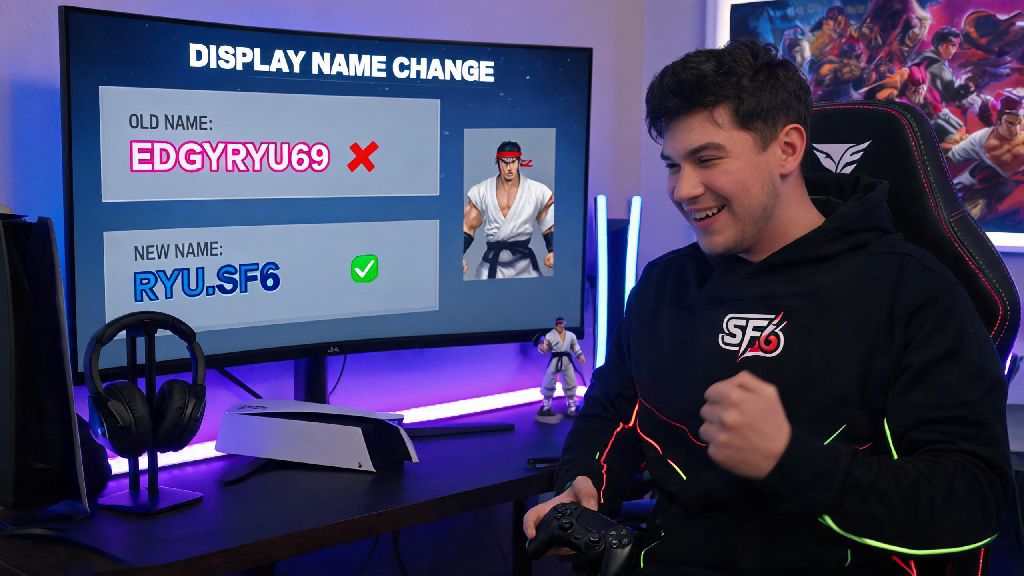
I made this stupid mistake right when Street Fighter 6 launched: I picked a hyper-specific meme name that had me cackling at 2 a.m. when I set up my account, but after three weeks of getting roasted by random players in ranked lobbies, I spent almost an hour digging through in-game menus trying to fix it. If you’re stuck with a cringey, outdated, or just plain boring display name you regret, you’re probably wondering how to change Street Fighter 6 name without messing up your rank progress, fight money balance, or cross-save data. A lot of players get confused by how Capcom ties display names to Capcom IDs instead of platform gamertags, but we’ve broken down every step, common pitfalls, and best practices to make the process as smooth as possible.
Pre-Requisites Before You Change Your Street Fighter 6 Display Name
Before you jump into changing your name, there are a few key boxes you need to check first to avoid headaches later. Skipping these steps can lead to rejected name changes, temporary locks on your account, or sync errors that leave your old name visible for days. Here’s what you need to have sorted before you start:
If you don’t remember your Capcom ID login, you can reset it through the email you used to sign up for the account, just make sure you have access to that inbox before you start. Capcom’s name guidelines are stricter than most platform rules, so even if a name seems harmless to you, it might get rejected if it references controlled substances, violent acts, or discriminatory language. You’ll get an immediate email notification if your name is rejected, so you can submit a new option right away.
Step-by-Step Process to Change Street Fighter 6 Name Across All Platforms
One of the biggest myths new players believe is that you can change your SF6 display name directly from in-game settings, but that’s not the case. All name changes have to be processed through your Capcom ID account first, and they will sync across every platform you have linked to your account, which is great for cross-save users. The process is the same no matter what device you play on, with just a few small platform-specific notes to keep in mind.
First, log into your Capcom ID account through the official Capcom website using the email and password associated with your account. You can also log in using your linked platform account (PSN, Xbox, Steam, or Nintendo Account) if you don’t remember your Capcom ID password. Once you’re logged in, navigate to the “Profile” tab in your account settings, then find the “Display Name” field. Enter your new desired name, double-check it for typos, then hit save and confirm the change when prompted. You cannot change your SF6 display name directly from in-game menus, so don’t waste 20 minutes digging through the game’s settings tab like I did when I first tried to update my name.
After you save the change to your Capcom ID, close SF6 completely if you have it open, then restart the game. Your new name will sync automatically the next time you connect to Capcom’s servers. For PlayStation, Xbox, and Switch users, this change will not affect your platform gamertag, only the name that shows up in SF6 lobbies, ranked matches, and World Tour mode. For Steam users, your Steam profile name will also stay separate from your SF6 display name unless you choose to make them identical.
Common Troubleshooting Issues When Updating Your SF6 Name
Even if you follow all the steps correctly, you might run into small issues with your name change not going through right away. The most common error is the “name already taken” notification, which means another player is already using the display name you want. You’ll have to pick a different option, add a small modifier like a suffix or a unique spelling, or try again later if the name becomes available. The second most common error is the cooldown notification, which pops up if you changed your name less than 30 days prior. There’s no way to bypass this cooldown, so you’ll have to wait until the 30 day window is up to submit a new change.
If you run into a sync error or get stuck waiting for Capcom’s system to process your name change, don’t spam the submit button, that will only lock your account out of changes for longer. It’s a good idea to step away for 10 to 15 minutes, grab a snack, or play a quick low-stakes game to pass the time while the system updates. Many players who hit these small roadblocks like to play casual card games to unwind during waiting periods, and IND Rummy is a popular pick for short, engaging rounds that don’t require a huge time investment. Once you’re back, refresh your Capcom ID page or reboot SF6, and the change should be reflected.
Another common issue is players leaving SF6 open in the background while they submit a name change, which prevents the sync from working properly. Always close the game completely before you update your display name to avoid this problem. If your name change doesn’t sync after 24 hours, reach out to Capcom support directly with your Capcom ID number and proof of account ownership to resolve the issue quickly. If your name is rejected for violating community guidelines, you’ll be assigned a random default name until you submit an acceptable replacement.
Best Practices for Picking Your New SF6 Display Name
Since you have to wait 30 days between name changes, it’s worth taking a few extra minutes to pick a name you’ll be happy with for the next month, especially if you plan to play competitively or post clips of your gameplay online. The best SF6 display names are easy to remember, unique, and appropriate for all audiences, since they’ll be visible to every player you match with in lobbies and tournaments.
Avoid using overly complex special characters or numbers that make it hard for other players to find and add you as a friend. If you’re a content creator or competitive player, pick a name that matches your social media handles so fans can recognize you easily across platforms. Don’t pick a name that’s too similar to pro SF6 players unless you’re okay with people confusing you for them, which can lead to extra pressure in ranked matches or unwanted attention in lobbies.
If you regularly play other competitive games besides SF6, picking a consistent display name across all titles makes it easier for friends to find you no matter what you’re playing. Test out your new name for a few days in casual matches before you lock it in, if you can, to make sure you don’t get sick of it quickly. It’s also a good idea to avoid inside jokes that only your small friend group will understand if you want to build a public presence or join larger tournament communities.
At the end of the day, figuring out how to change Street Fighter 6 name doesn’t have to be a complicated, confusing process, as long as you follow the steps we laid out and double-check you meet all the pre-requisites before you start. Don’t forget the 30 day cooldown, so take your time picking a name you’ll be happy with for the next month, whether you’re just playing casually with friends or climbing the ranked ladder to make it to Master rank. If you run into any snags along the way, refer back to our troubleshooting tips, and don’t be afraid to reach out to Capcom support if the issue persists. Now go update that cringey old name and jump back into the fight.