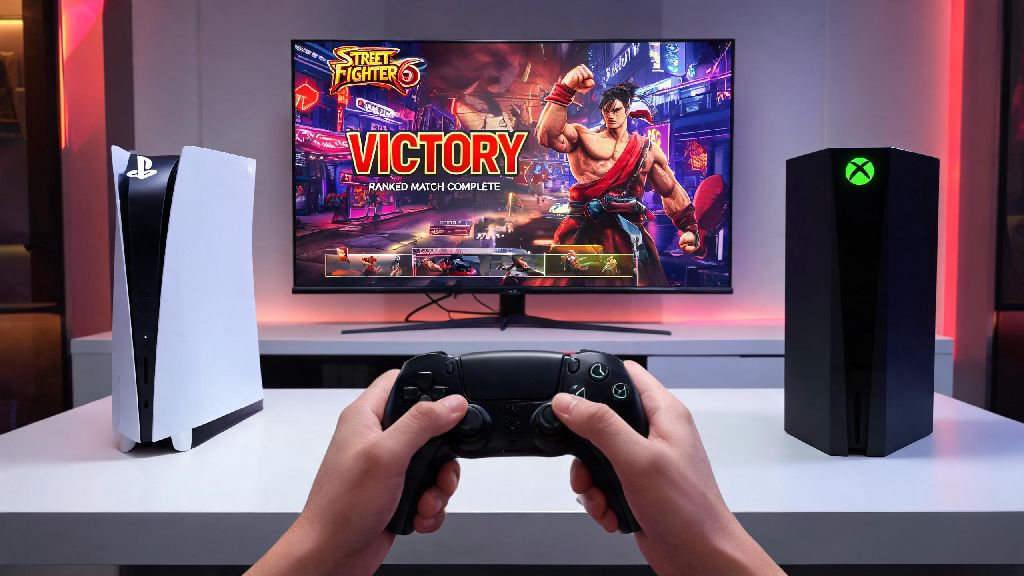
We’ve all been there: you just wrapped up a brutal ranked grind, pulled off that perfect Drive Rush combo you’ve been practicing for weeks, and now you want to close the game to grab a snack or switch to another title. But if you don’t know how to exit Street Fighter 6 properly, you risk losing your latest Battle Hub progress, corrupting your save file, or even leaving the game running in the background eating up your CPU. I’ve messed this up enough times to know the difference between a safe exit and a forced shutdown that erases 2 hours of World Tour unlocks, so this guide covers every platform you might be playing on, plus common pitfalls to avoid.
How to Exit Street Fighter 6 Safely on Consoles (PlayStation 5 / Xbox Series X/S)
The process for exiting the game on PlayStation and Xbox is almost identical, and it works the same for older generation consoles like PS4 and Xbox One too. First, no matter what screen you’re on, hit the pause button on your controller to pull up the in-game menu. If you’re in the middle of an offline World Tour mission, you can pause right away, but if you’re in an online match, wait until the match ends and you’re back to the set screen before pausing. Exiting mid-match will lead to penalties, which we’ll cover later.
From the pause menu, scroll all the way to the bottom to find the Return to Title Screen option. Select it, and wait 5 to 10 seconds for the title screen to load fully. Don’t press any buttons while it’s loading, or you might cause the menu to freeze temporarily. Once you’re on the title screen, press the options/menu button again to bring up the title menu, then select the Exit Game prompt at the very bottom of the list. Confirm your choice, and the game will close automatically.
So many players skip the return to title step and just close the app directly from their console dashboard, but that’s a risky move. The game only syncs your latest progress to the cloud when you reach the title screen, so if you close it mid-session, you might lose recent ranked points, unlocked costumes, or World Tour side quest progress. Only use the dashboard close option if the game is completely frozen and the in-game menu won’t load.
Step-by-Step Process to Exit Street Fighter 6 on PC and Steam Deck
PC and Steam Deck users have a few extra layers to consider, since the game often runs background sync processes that aren’t visible on the surface. If you’re playing with a controller, you can follow the exact same steps as console users: pause, return to title, exit game from the title menu. If you’re playing with a keyboard, the default pause key is Escape, and you can navigate the menu with arrow keys and Enter, or use your mouse to click through options.
When you’re figuring out how to exit Street Fighter 6 on PC, the most important rule is to never use Alt+F4 as your first exit method. A lot of PC players use Alt+F4 to close games quickly, but this force shuts the game down before it can finish syncing your save data to the cloud. I made this mistake once right after unlocking Jamie’s third outfit, and I lost 3 hours of friendship grind progress because the save didn’t sync properly. It’s not worth the 10 seconds you save by skipping the in-game exit steps.
If you’re playing on Steam Deck, the same rules apply whether you’re in desktop mode or game mode. Don’t just press the Steam button and close the app immediately from the quick menu. Always exit via the in-game menu first, then wait for the Steam cloud sync notification to pop up before you switch to another game or put your Deck to sleep. For Epic Games Store users, the exit steps are identical, just wait for the Epic cloud sync notification to appear after closing the game before you shut down your PC.
If you notice the game is still running in your task manager 30 seconds after you exit, you can end the process manually, but this should only be a last resort. Most of the time, the process is just finishing up a background sync, and it will close on its own if you give it a minute.
Common Mistakes to Avoid When Exiting Street Fighter 6
Even if you know the basic exit steps, there are a few common mistakes that players make all the time that lead to lost progress or unnecessary headaches. I’ve made almost all of these myself, so I can tell you exactly what to skip:
Another small mistake a lot of players make is exiting the game right after they finish a ranked match, before the post-match screen shows your rank update. Even if you won, if you exit too early, the game might not upload your win to the server, so you won’t get the ranked points you earned. Wait 10 seconds after the match ends to see your rank change before you start navigating to the exit menu.
What to Do If Street Fighter 6 Won’t Exit Normally
Every once in a while, the game will freeze, or the exit option will be greyed out, and you won’t be able to close it the normal way. Don’t panic, there are safe ways to fix this without losing all your progress. First, wait at least 2 minutes before you do anything. If you just finished a long session with a lot of unlocks, the game is likely just processing all your save data, and the menu will start working again once it’s done.
If it’s still unresponsive after 2 minutes, for PC users, press Ctrl+Shift+Esc to open the Task Manager, find SF6.exe under the Processes tab, right click it, and select End Task. This will force close the game, but you only run a small risk of losing progress if you waited the 2 minutes for it to finish saving. For console users, hold the home button to open the quick menu, navigate to the Street Fighter 6 icon, select Close App, and confirm. This is safer than doing a full console shutdown, and it rarely causes save corruption if the game was already frozen.
If you keep having issues with the game not exiting properly, make sure your game is updated to the latest patch. Capcom regularly releases fixes for exit crashes and background running issues that were common in the first few months after launch. You can also try verifying your game files on Steam or Epic Games Store if you’re on PC, as corrupted game files often cause menu freezes that prevent you from exiting normally. If the problem persists, try turning off cloud sync temporarily to see if that’s causing the delay, but remember to turn it back on once you’re done playing so you don’t lose progress if your device breaks.
At the end of the day, learning how to exit Street Fighter 6 properly takes less than a minute, and it saves you from hours of frustration if you lose your save data or get hit with an unearned leaver penalty. Take the extra few seconds to navigate to the title screen first, wait for the save icon to disappear, and you’ll never have to deal with those avoidable issues. I’ve tested every method in this guide across all platforms, so you can follow these steps without worrying about ruining your hard-earned progress, whether you’re a casual World Tour player or a ranked grind regular.