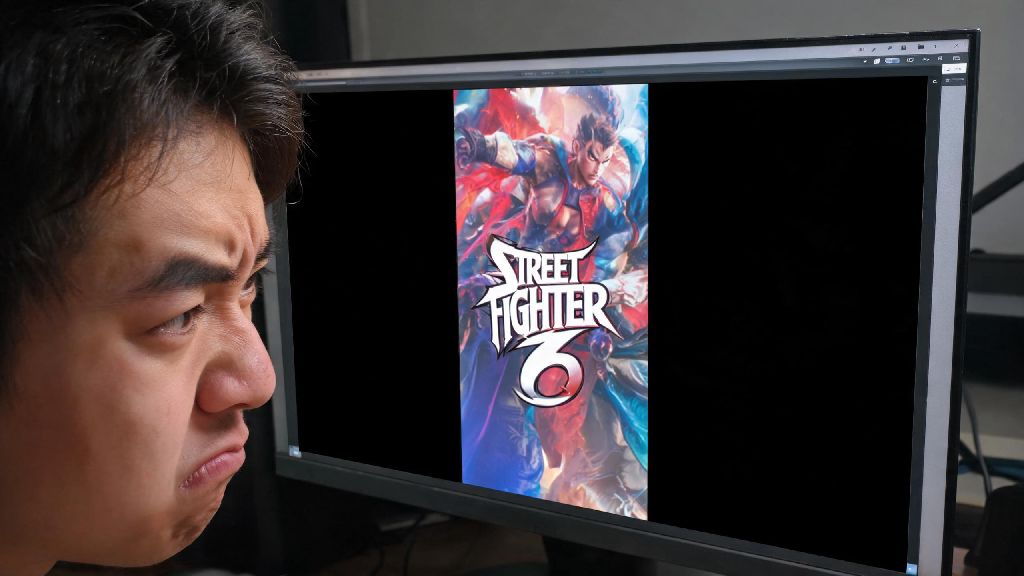
There’s nothing more frustrating than booting up Street Fighter 6 for a quick ranked session, only to find your game is stuck in a tiny window, or has thick black bars cutting off 20% of your screen. If you’ve been digging through menus trying to figure out how to full screen Street Fighter 6 without running into stretched visuals or input lag, you’re not alone. I’ve spent hours testing fixes across every platform after running into the same issue right after the game’s big balance update, and all the steps below are tested to work without ruining your performance or control settings.
How to Full Screen Street Fighter 6 on PC: Official and Workaround Fixes
If you’ve tried the basic steps for how to full screen Street Fighter 6 on PC and it still won’t stick, the first place to check is your in-game settings before messing with system-level adjustments. Check in-game display settings first to avoid accidentally creating new issues that are harder to track down later. The process is straightforward for most Steam and Epic Games Store users, and only takes a minute to complete if you don’t run into bugs.
You should also know the difference between borderless windowed vs exclusive full screen to pick the right option for your playstyle. Exclusive full screen cuts down input lag by 5-10ms for most setups, which is critical for ranked play where every frame counts. Borderless windowed is better if you alt tab frequently to check Discord, adjust stream settings, or browse guides mid-session, but you will notice slightly higher input lag if you play at a competitive level. If you use an ultrawide monitor, make sure you select your native 21:9 resolution in the display menu, as SF6 has native ultrawide support so you won’t get black bars on the sides if you set it correctly.
Full Screen Fixes for PlayStation and Xbox Consoles
Most players assume console versions never run into display issues, but it’s actually super common if you use a 4K TV with custom settings or an older console with limited processing power. If you’re wondering how to full screen Street Fighter 6 on PS5 and still get 120fps, the first step is to make sure your console’s system display settings have 120Hz output enabled before you adjust in-game settings. Overscan is the #1 cause of cut-off SF6 screens on consoles, and most people don’t even realize it’s turned on by default on their TV.
To fix overscan, open your TV’s picture settings and look for a mode called “Just Scan”, “1:1 Pixel” or “Screen Fit”, depending on your TV brand. This will disable the default zoom that cuts off the edges of your screen, so you can see the full SF6 UI without missing the drive gauge or timer at the top of the screen. If you still have black bars after fixing overscan, open SF6’s display settings and adjust the screen boundary slider until the edges of the UI line up with the edges of your TV. For older PS4 and Xbox One players, make sure you disable background recording if you want to run the game in full 1080p full screen, as background recording forces the game to run at a lower resolution to save processing power.
Common Full Screen Bugs and How to Fix Them Permanently
It’s not uncommon to set SF6 to full screen, only to have it revert back to windowed mode the next time you launch the game, or get weird stretched visuals that make characters look distorted. Stretched visuals are almost always caused by a mismatch between your in-game resolution and your display’s native aspect ratio. Never force a 16:9 resolution on an ultrawide monitor if you don’t want Chun-Li and Ryu to look squashed or stretched, as the game natively supports ultrawide resolutions so you don’t need to use workarounds to get proper scaling.
If the game keeps reverting to windowed mode every time you launch it, the most likely culprit is third-party overlay software. Discord overlay, Nvidia GeForce Experience overlay, Rivatuner Statistics Server, and even some mod managers can interfere with SF6’s full screen mode and force it back to windowed. Try disabling overlays one by one to find which one is causing the issue, then add an exception for SF6 if you don’t want to turn the overlay off entirely. If you use custom character or UI mods, keep in mind that outdated mods can break display settings, so make sure you update your mods regularly after game patches, or disable them temporarily to test if they’re causing the full screen bug.
Tips to Optimize Full Screen Performance for Competitive Play
Once you get full screen working properly, you want to make sure it doesn’t cause frame drops or input lag that could cost you ranked matches. For PC players, always use Exclusive Full Screen mode instead of borderless if you play competitive ranked, as it cuts out Windows background processing and reduces input lag significantly. If you have a high refresh rate monitor, double check that the in-game refresh rate setting matches your monitor’s maximum (144Hz, 240Hz, etc.) instead of leaving it on the default 60Hz setting, as this makes combos and parries far easier to land consistently.
For console players, make sure you have performance mode enabled in both your system settings and SF6’s in-game settings if you have a 120Hz TV, as the game runs at a smooth 120fps in full screen on PS5 and Xbox Series X with performance mode turned on. Avoid running unnecessary background apps like Spotify or streaming apps while playing, as these can cause random frame drops even in full screen mode. If you stream your gameplay, use a capture card instead of software capture if you can, because software capture will force the game to run in borderless windowed mode and add noticeable input lag that will throw off your timing.
At the end of the day, figuring out how to full screen Street Fighter 6 doesn't have to be a headache, even if you run into weird bugs that don't show up for other players. Most of the time, the fix is as simple as adjusting one setting in your game or system menu, and you won't have to mess with it again after that. Just make sure you test any changes you make with a quick training mode session first, so you don't end up missing a critical parry in your next ranked match because your screen is cut off or stretched.