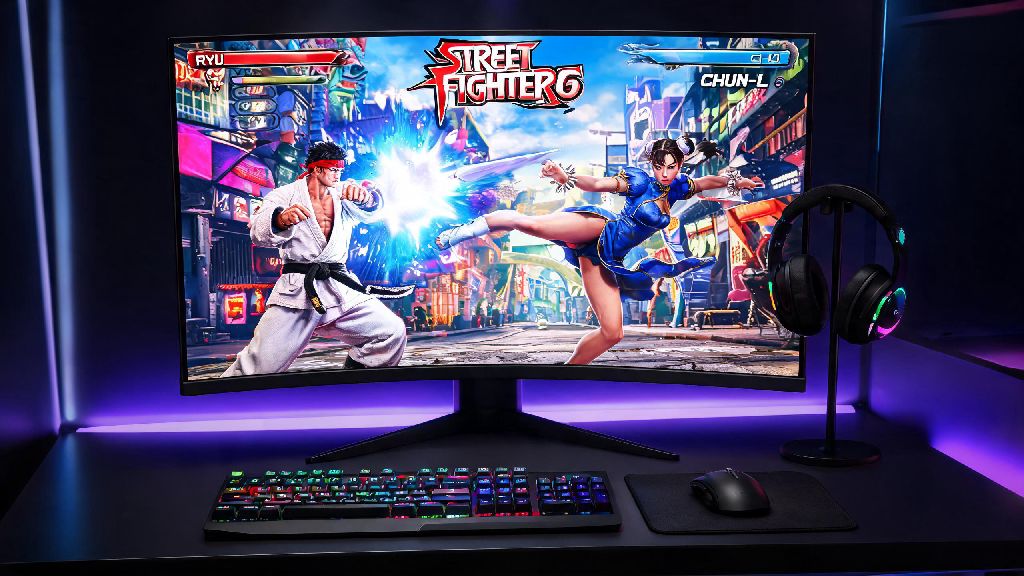
There’s nothing more frustrating than booting up Street Fighter 6 for a ranked set, only to find the game stuck in a tiny windowed box, or bordered by thick black bars that cut off parts of the stage. Whether you’re running a standard 1080p monitor or an ultrawide display for extra peripheral vision, you deserve to experience the game’s vibrant art and fast-paced action at full size. If you’ve been trying to figure out how to make street fighter 6 full screen on pc without running into glitches, you’re in the right place. All the fixes shared below have been tested by me and other members of my local fighting game community over the past six months.
How to Make Street Fighter 6 Full Screen on PC: In-Game Settings First
The first and easiest fix for windowed mode issues is adjusting the default in-game display settings, which often get reset after game updates or GPU driver upgrades. To access them, head to the main menu, click the gear icon in the top right corner, and select the “Display” tab from the options list. Set display mode to "Fullscreen" first, rather than borderless window, if you want the lowest possible input lag. Next, make sure the resolution listed matches your monitor’s native resolution exactly, even if it means scrolling through the list to find the right number.
If you’re using an ultrawide monitor, you’ll also need to toggle the aspect ratio lock setting to “Off” to avoid stretched visuals or black bars on the sides of your screen. Once you’ve adjusted these settings, click “Apply” and wait 10 seconds for the game to adjust its display. If the settings don’t save after you exit the menu, close the game fully and restart it, then re-adjust the settings. I’ve run into this issue a handful of times after SF6 patches, and a quick restart almost always fixes it immediately.
Fixes for Common Full Screen Glitches in SF6
Even if you set all the in-game settings correctly, you might still run into common issues like persistent black bars, blurry visuals, or the game crashing every time you switch to full screen mode. These glitches are usually caused by third-party software conflicts or outdated GPU drivers, not the game itself. The following quick fixes solve 90% of common full screen errors for PC players:
To turn off high DPI scaling, right click the SF6.exe file, select “Properties”, head to the “Compatibility” tab, and check the box that says “Disable high DPI scaling behavior”. Avoid running other full screen apps in the background when you launch SF6, as apps like Discord, OBS, or even your web browser can cause the game to default to windowed mode to save resources. If you still see black bars after trying all these fixes, check your monitor’s own display settings to make sure it’s not set to a forced 16:9 aspect ratio for all inputs.
Borderless Window vs Exclusive Full Screen: Which Is Better for SF6?
Many players get confused between the two full screen options available in SF6, and it’s important to pick the right one for your use case. Exclusive full screen gives your GPU full control over the display output, which cuts down on input lag by 1-2 frames on most setups. That might not sound like a big difference, but for fighting games where a single frame can mean the difference between blocking a critical super attack and getting KO’d, it matters a lot.
Borderless window mode, on the other hand, lets you alt tab between SF6 and other apps almost instantly, with no loading delay. This is ideal if you stream your matches, check frame data between sets, or chat with friends on Discord while you play. For ranked or tournament play, exclusive full screen is always the better pick, even if it takes an extra second to switch between windows. I used to play in borderless mode for convenience, but switched to exclusive full screen once I started entering local tournaments, and noticed an immediate improvement in my reaction time for fast moves like Drive Parry.
How to Fix Full Screen Issues for Xbox Game Pass SF6 PC Versions
If you play SF6 through Xbox Game Pass instead of Steam, you might run into slightly different full screen issues, as the Xbox app’s anti-cheat and DRM systems sometimes interfere with display settings. The first fix to try is disabling GPU acceleration in the Xbox app settings. Open the Xbox app, click your profile icon, select “Settings”, head to the “General” tab, and uncheck the box that says “Use GPU accelerated hardware”, then restart your PC before launching SF6 again.
If that doesn’t work, you can manually edit the game’s config file to force full screen mode. You can find the config file in your PC’s “AppData” folder, under the “Capcom” > “Street Fighter 6” subfolder. Open the config file with Notepad, find the line that says “FullscreenMode=0” and change the 0 to 1, then save the file. Always back up your config file before editing it, so you don’t lose your custom control settings or controller mappings if you make a mistake. I also recommend checking for Xbox app updates regularly, as Microsoft pushes out fixes for display conflicts with PC game pass titles every few weeks.
At the end of the day, small display issues shouldn’t get in the way of your Street Fighter 6 sessions. Once you know how to make street fighter 6 full screen on pc with the fixes shared above, you can stop messing with settings and focus on what matters most: nailing your combos, climbing the ranked ladder, and enjoying the game the way it was meant to be played. If one fix doesn’t work for your setup, just move to the next one—most full screen issues are solved in under two minutes, no advanced technical expertise required. I still double check my full screen settings before every local tournament set, just to make sure I don’t get distracted by random window borders mid-match.