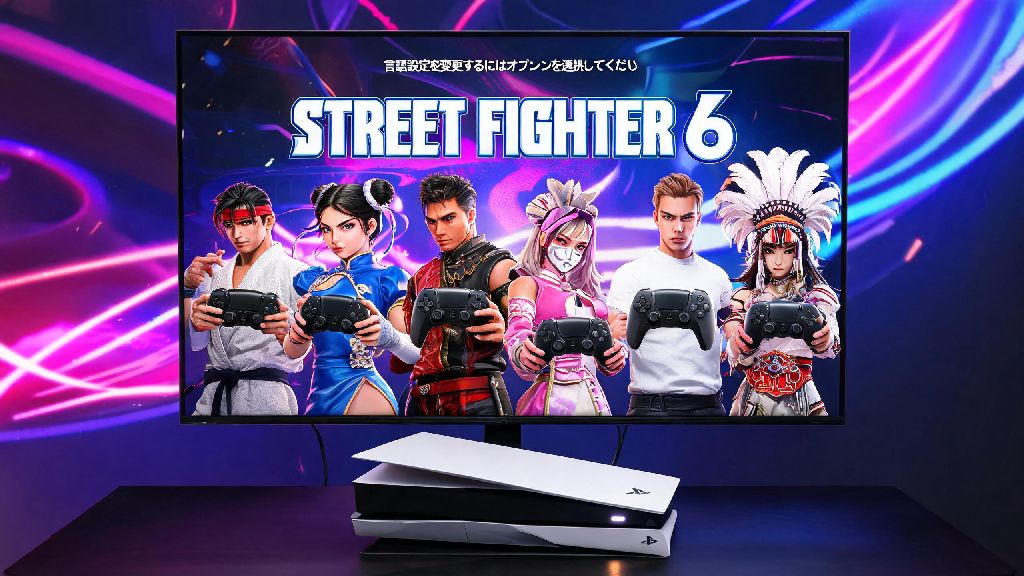
There’s nothing more frustrating than booting up a new copy of Street Fighter 6 for the first time, only to find the entire menu is in a language you can’t read. Maybe you picked up a physical copy while traveling abroad, or your platform’s default region settings pushed a language you don’t use. Figuring out how to change the language on Street Fighter 6 doesn’t have to require guessing through random menu icons or scrolling through dozens of outdated forum posts, either. I’ve run into this exact issue myself when I bought a limited-edition SF6 disc in Osaka a few months back, and I’ve tested every workaround to make this process as painless as possible for every platform.
How to Change the Language on Street Fighter 6 for All Platforms
The process is slightly different depending on what device you’re playing on, but all versions let you adjust language settings directly in-game, even if you can’t read the current menu text. First, boot to the main menu, and navigate to the gear-shaped settings icon, which is the fourth option from the left on the top menu bar. Select that, then pick the third option from the top in the settings menu, which is always the language section regardless of current text. The layout never changes across regions, so you don’t have to worry about picking the wrong section even if you can’t read a word of the default language.
PlayStation 5 / PlayStation 4: Once you’re in the language menu, select the first option to open the dropdown list of available menu languages. Scroll until you find your preferred language, confirm your selection, then press X to save changes. The game will automatically restart to apply the new settings, so make sure you save any in-progress World Tour mode runs before you make the switch. You won’t lose any save data as long as you manually save before adjusting settings.
Xbox Series X|S / Xbox One: The process is almost identical to PlayStation, but you’ll press A to confirm your selection instead of X. If you don’t see your desired language on the list, head to your Xbox system settings first, set your system language to your preferred option, then restart SF6 to see the language added to the in-game list. Most regional Xbox copies pull language options directly from your system settings by default.
PC (Steam / Epic Games Store): PC users have a little extra flexibility here. You can adjust language settings either in-game using the same steps as console, or right from your game library. For Steam users, right click on Street Fighter 6 in your library, select Properties, then head to the Language tab to pick your preferred option. The game will download any required language packs automatically before your next launch, so you don’t have to hunt for separate DLC files.
Nintendo Switch: Switch players will need to adjust their system language first if their desired language doesn’t show up in the in-game menu. Head to your Switch system settings, select Language, pick your preferred option, then restart SF6 to see the language available for selection in the in-game settings. Physical Switch copies of SF6 usually only include languages supported by the region you bought the disc in, but a free post-launch patch added full global language support for all copies.
Customizing Audio and Subtitle Languages Separately
One of the best features of SF6 is that you don’t have to set all language settings to the same option. Most players prefer to mix and match settings to fit their preferences, and the game makes that easy to do once you know where to look. This is perfect if you love the original Japanese voice acting but want English menus and subtitles to follow the story, or if you’re learning a second language and want to practice without missing important context.
Once you’re in the language settings menu, you’ll see separate toggles for menu text, audio voice, and subtitle language. You can adjust each one individually, no restrictions, as long as you have the corresponding language pack installed. Japanese voice acting pack is included by default in all global copies of the game now, so you don’t have to pay extra or download a separate DLC to access it, unlike some older fighting games.
If you want to tweak subtitle appearance further, head to the Accessibility tab in the settings menu. You can adjust subtitle size, color, background opacity, and even turn off speaker labels if you find them distracting during fights. These settings are saved separately for each user profile, so you don’t have to readjust every time someone else plays on your account. It’s a small feature, but it makes a huge difference if you share your console with family or friends who prefer different settings.
Common Language Setting Issues and Quick Fixes
Even if you follow all the steps correctly, you might run into small glitches that stop your language settings from sticking. These are almost always easy to fix, and you don’t need any technical expertise to resolve them. I’ve dealt with every one of these issues at least once while testing settings for friends, so these fixes are all tested and proven to work.
If none of these fixes work, you can always uninstall and reinstall the game, but that should be a last resort. 99% of language issues are resolved with the fixes above, and you won’t lose any save data as long as you have cloud saves enabled for your platform. I’ve only ever had to reinstall the game once to fix a language glitch, and that was because I interrupted a language pack download mid-process.
Best Language Settings for Different Play Styles
There’s no “right” language setup for SF6, but there are a few tweaks you can make to fit how you play the game most often. These small adjustments can make your play sessions way more enjoyable, whether you’re just playing through the story for fun or competing in local tournaments every weekend.
If you’re mostly playing World Tour story mode, set your menu and subtitle language to your native language, and pick whatever audio language you enjoy most. The World Tour story has a lot of funny dialogue and character interactions, so you won’t want to miss any of it because you’re struggling to read subtitles or understand voice lines. You can always adjust the settings later when you switch to online matches.
If you play competitive tournament play regularly, consider turning off subtitles entirely, even if you’re using a different audio language. Subtitles can pop up during critical moments of a match and distract you from your opponent’s movements, which can cost you a round. Keep your menu text in your native language so you can adjust controls or setting quickly between matches, and set audio to whatever you’re most comfortable with. Most tournament organizers allow custom language settings as long as you don’t use any mods that change game performance.
If you’re using SF6 for language learning practice, set all three settings to the language you’re learning, and turn on subtitles for that same language. This lets you hear native pronunciation, read the text at the same time, and pick up casual slang and common phrases while you play. It’s way more fun than drilling flashcards, and you’ll pick up words related to fighting and emotions that you might not learn in a standard language class. I’ve been using this trick to practice Korean, and I’ve already picked up dozens of new words just from playing a few hours a week.
At the end of the day, SF6 is built to be accessible for players all over the world, so you never have to stick with a language setup that doesn’t work for you. Once you know how to change the language on Street Fighter 6, you can tweak every part of the game’s text and audio to fit exactly what you want, whether that’s full Japanese voice acting with English subtitles or a full Spanish setup to practice your language skills. Don’t be afraid to test different combinations to find what feels best for your play style, and don’t stress if you run into small glitches along the way — the fixes are almost always simpler than you think.