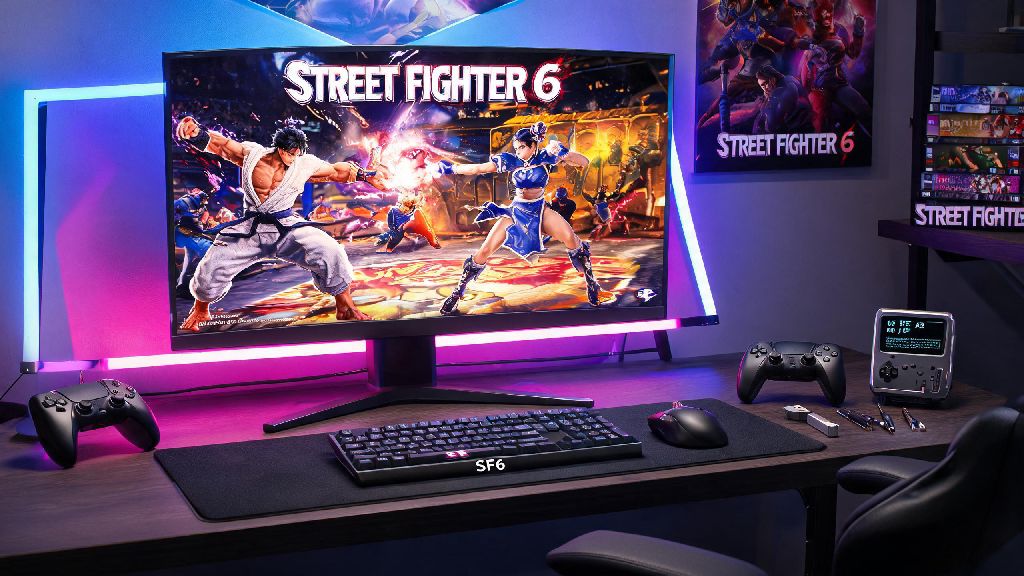
If you’ve sunk hundreds of hours into Street Fighter 6, you’ve probably daydreamed about swapping Ryu’s default gi for a custom cosplay skin, replacing the Battle Hub background with your favorite fighting game arena, or even adding custom voice lines for your main. Modding is one of the best ways to breathe new life into the game long after you’ve mastered every character’s combo, but it’s easy to mess up if you don’t know what you’re doing. I’ve been modding SF6 since its launch, and I’ve made every mistake in the book from downloading malware-ridden files to accidentally getting my account temporarily flagged for online play. This guide breaks down how to install street fighter 6 mods safely, no advanced tech skills required.
Pre-Requisites Before You Learn How to Install Street Fighter 6 Mods
Before you download any mod files, there are a few critical boxes you need to check to avoid ruining your game or losing your progress. First, only the Steam/PC version of Street Fighter 6 supports modding. There are no workarounds for PlayStation or Xbox consoles right now, and any site claiming to offer console SF6 mods is either a scam or will get your console account banned permanently.
Next, take 2 minutes to back up your save files and game folder. You can find your SF6 save files in your Steam user data folder, and copying them to a separate folder on your desktop means you won’t lose your ranked progress, custom avatar items, or World Tour saves if something goes wrong during installation. I learned this the hard way a few years ago when a bad mod corrupted my save for another fighting game, and I had to restart 40 hours of story mode from scratch.
You’ll also want to disable automatic game updates temporarily while you’re modding. Capcom releases regular balance patches and bug fixes for SF6, and even a small update can break every mod you have installed overnight. You can turn off auto-updates by right-clicking Street Fighter 6 in your Steam library, selecting Properties, and toggling the auto-update option to “Only update this game when I launch it.” That way, you can check if your installed mods are compatible with a new patch before you update the game.
Last, make sure you have at least 5GB of free storage space on your hard drive. Most character skins are only 100 to 500MB each, but larger mods like full stage overhauls or custom music packs can be 2GB or more, so extra space will save you from installation errors later.
Where to Find Safe, Virus-Free SF6 Mods
The biggest risk of modding any game is downloading malware or adware disguised as mod files, and SF6 is no exception. I’ve seen dozens of new players end up with viruses on their PC because they downloaded a “free Chun-Li skin” from a random sketchy site with a million pop-up ads. Stick to trusted, community-vetted sources only, and you won’t run into this problem. The safest places to find SF6 mods are:
Never download mods from sites that force you to complete surveys or click through multiple pop-up ads to get the file. These sites are almost always designed to install adware or malware on your PC, and the mod file they give you will either be fake or corrupted. Always check the comment section or recent reviews for a mod before you download it too: if multiple people are saying the mod crashes their game or has missing textures, skip it and find a different version.
You should also pay attention to mod upload dates. Mods uploaded more than 6 months ago may not be compatible with the latest version of SF6, unless the creator has posted an update note confirming it works with recent patches.
Step-by-Step Mod Installation Process
Gone are the days of manually editing game files and risking breaking your entire install to add a custom skin. For SF6, almost all modders use a free, open-source tool called Fluffy Mod Manager that handles all the hard work for you. It’s the same tool used for modding other popular Capcom games like Resident Evil 4 Remake and Devil May Cry 5, so it’s safe and well-tested.
First, download the latest version of the mod manager and run the installer. When you first open it, it will ask you to select your game from a list. Find Street Fighter 6, then point the manager to your SF6 install folder (you can find this by right-clicking the game in your Steam library, selecting Manage, then Browse Local Files). The manager will automatically set up the folders it needs to run mods, no extra setup required.
Next, download the mod you want from one of the trusted sources we listed earlier. Most mods come as a .zip or .rar file, and you don’t even need to extract it. Just drag and drop the compressed mod file directly into the mod manager window, and it will automatically install the mod for you. You’ll see the mod name pop up in the manager’s mod list once it’s done.
To activate the mod, just check the box next to its name in the manager. If you want to deactivate it later, just uncheck the box, no file deletion required. Always test one mod at a time when you’re first starting out. I made the mistake of installing 12 different character skins at once my first time modding SF6, and my game crashed immediately on launch. I spent 2 hours uninstalling each mod one by one to find the one that was conflicting, and it would have saved me so much time if I’d tested each mod individually first.
Once you have the mods you want activated, you can launch the game either through the mod manager or directly through Steam. The mods will load automatically, and you’ll see your custom content as soon as you open the game.
Common Modding Issues and Simple Fixes
Even if you follow every step perfectly, you might run into small issues when modding SF6. Most of these problems are super easy to fix, no technical skills needed. The most common issue I see is a mod not showing up in game at all. If this happens, first make sure you checked the box next to the mod name in the manager to activate it. If it’s still not showing up, the mod is probably outdated and not compatible with the latest version of SF6. Check the mod’s download page for an update, or look for a newer version of the same mod from another creator.
If your game crashes immediately on launch after installing a new mod, that means you have a conflicting mod or a corrupted mod file. Uncheck all your installed mods, then activate them one by one, launching the game each time, to find which mod is causing the crash. Most conflicts happen when you install two different mods that modify the same character or stage, so you’ll only be able to use one of them at a time.
The most important rule to remember is you must disable all mods before launching any online mode. Capcom’s anti-cheat system detects modified game files, even if they’re just cosmetic skins, and you can get a temporary or permanent account ban if you go into ranked play, casual matches, or the Battle Hub with mods active. This is non-negotiable, and Capcom won’t reverse bans for modders who go online by mistake. If you want to switch from offline modded play to online play, just close the game, uncheck all mods in the manager, then launch the game again. It takes 10 seconds and will save you from losing your account.
Another common issue is missing textures on modded characters, where parts of the skin will look black or see-through. This almost always happens when you didn’t download all the required files for the mod. Some complex mods require a base mod to work, so check the mod’s description page to make sure you downloaded all the required dependencies before installing it.
Modding SF6 is one of the best ways to make the game feel personal, whether you want to turn your main into your favorite anime character, add custom soundtracks from old fighting games, or even make silly meme mods that turn every character into a giant version of JP’s cat. Once you get the hang of how to install street fighter 6 mods, you can even start experimenting with making your own mods if you’re feeling creative. Just stick to the safety rules we covered: only download mods from trusted sources, test one mod at a time, never go online with mods active, and always back up your saves. You’ll have a fully customized SF6 experience in no time, without any of the headaches I dealt with when I first started.