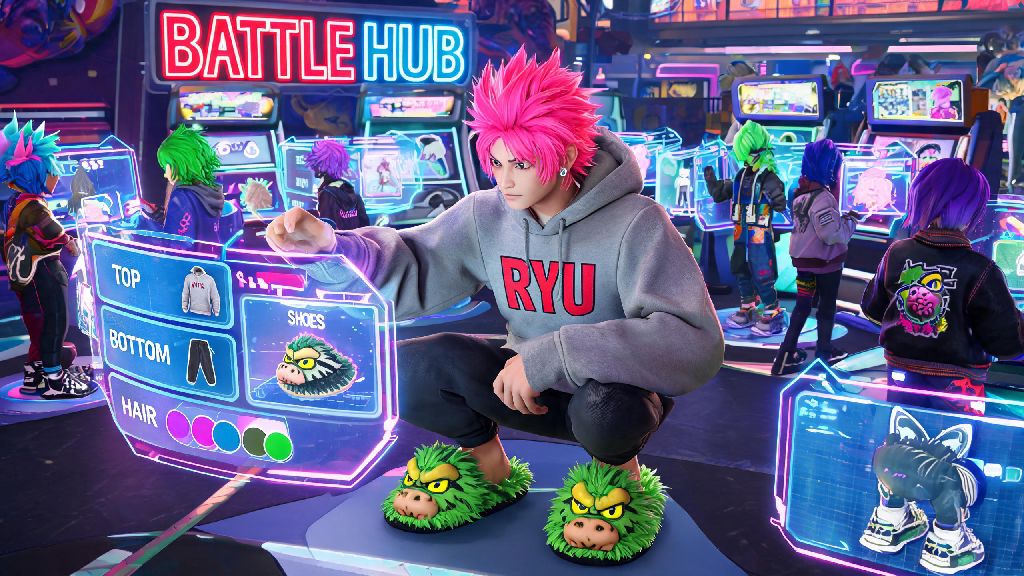
You just hopped into Street Fighter 6’s Battle Hub, saw someone rocking a neon-haired avatar with a vintage Ryu hoodie and custom Blanka slippers, and immediately want to tweak your own boring default character you threw together when you first launched the game. If you’re wondering how to edit avatar in Street Fighter 6 after the initial setup, you’re not alone—lots of players miss the tucked-away customization menu when they’re rushing to jump into their first ranked match. I’ve spent dozens of hours messing around with avatar edits to get the perfect look for my Battle Hub runs, so I’ve broken down every step you need to know, plus hidden customization options you might not have found on your own.
How to Edit Avatar in Street Fighter 6 After Initial Setup
The best part about SF6’s avatar system is that you never have to lock in your look permanently. You don’t need to start a new save file or spend real money to make changes to your existing avatar, even if you’re 30 hours deep into World Tour mode. You don’t need to spend Drive Tickets to edit basic appearance features like hair color, face shape, skin tone, or body type—only premium cosmetic items and limited-time gear cost in-game currency. If you’re on the main menu, just navigate to the “Profile” tab on the far right of the top menu bar, then select “Avatar Customization” to pull up the full editor. If you’re already in World Tour mode, open the pause menu, scroll down to the “Player” section, and select “Edit Avatar” to jump straight into the editor without exiting your play session. I used to waste 10 minutes exiting World Tour every time I wanted to change my avatar’s shirt until I found that in-mode shortcut last year.
Hidden Avatar Customization Features You Might Have Missed
Most players only scratch the surface of what the avatar editor can do, even after months of playing the game. The editor has a ton of underused features that let you make a way more unique avatar than the default options allow. Some of my favorite hidden features include:
A lot of players don't realize you can unlock exclusive avatar gear by completing side missions in World Tour mode. For example, beating the yoga crew at Metro City’s downtown park gives you a custom Dhalsim headband that you can’t buy in the in-game store. I’ve had multiple people ask me where I got mine in the Battle Hub, so it’s worth grinding those small side quests for rare, one-of-a-kind items.
How to Fix Common Avatar Editing Glitches
Like any game feature, SF6’s avatar editor has a few small bugs that can ruin your editing session if you don’t know how to fix them. I’ve run into almost every glitch possible while messing with my avatar, so I’ve got quick fixes for the most common issues. If your avatar changes don’t show up in the Battle Hub, simply fast travel to a different hub area and back to force a refresh—you don’t need to restart the entire game, which is a common mistake I see new players make. If your avatar’s face edits keep reverting to the default, make sure you’re not accidentally selecting a preset face when you open the editor. The editor defaults to the last preset you used, so you have to manually select your custom face slot to load your existing edits before making changes. I lost 20 minutes of work on a custom face once because I forgot to do this, so it’s a small step that saves a lot of frustration. If you unlocked gear from a limited-time event, make sure you’ve downloaded the latest game patch to access it, as expired event items will be grayed out in your inventory until the patch is installed. Also, don’t edit your avatar right before a ranked match queue pops—if the match starts while you’re in the editor, your changes might not save, and you could end up stuck with the default look for that match.
Tips for Making a Standout Avatar That Fits Your Playstyle
Your avatar is your public persona in SF6’s Battle Hub, so it’s worth putting a little thought into making it feel like you. It doesn’t have to be super realistic or cool—some of the most memorable avatars I’ve seen are intentionally silly, like a 7-foot-tall character wearing a giant chicken head and Chun-Li’s signature dress. Pick avatar gear that matches your main character’s color scheme to make it easier for spectators to spot you in Battle Hub tournament lobbies. I main Kimberly, so I dyed all my avatar’s clothes bright pink and purple to match her default outfit, and my friends can find me in crowded lobbies in 2 seconds flat. If you play lots of casual matches in the Battle Hub, adding funny emotes or silly accessories can make you more memorable to other players, and I’ve even made a few long-term play partners just because they loved my absurd avatar look. You can save up to 3 different avatar presets so you don’t have to re-edit every time you switch game modes. I have one preset called “Tournament Mode” that’s a plain, neutral outfit so I don’t distract myself during ranked runs, one called “Casual Fun” with the giant chicken hat and goofy dance emotes, and one called “World Tour” that’s a streetwear look that fits in with Metro City’s vibe. It only takes a few seconds to switch between them, so it’s worth setting up if you jump between game modes often. You can also adjust your avatar’s body type to fit your preferred playstyle too—taller avatars have longer reach in World Tour mode fights, while smaller avatars are faster and harder to hit.
Now that you know how to edit avatar in Street Fighter 6, you don’t have to stick with the boring default character you threw together on your first launch. Spend a few minutes messing around with the editor, try out those hidden layered clothing slots, and don’t be afraid to make something silly or over-the-top—half the fun of the Battle Hub is showing off a unique persona that feels like you. If you run into any snags while editing, just try the quick refresh trick we mentioned earlier, and you’ll be back to showing off your new look in no time. The best avatars are the ones that feel like an extension of you, so don’t be afraid to get weird with it.