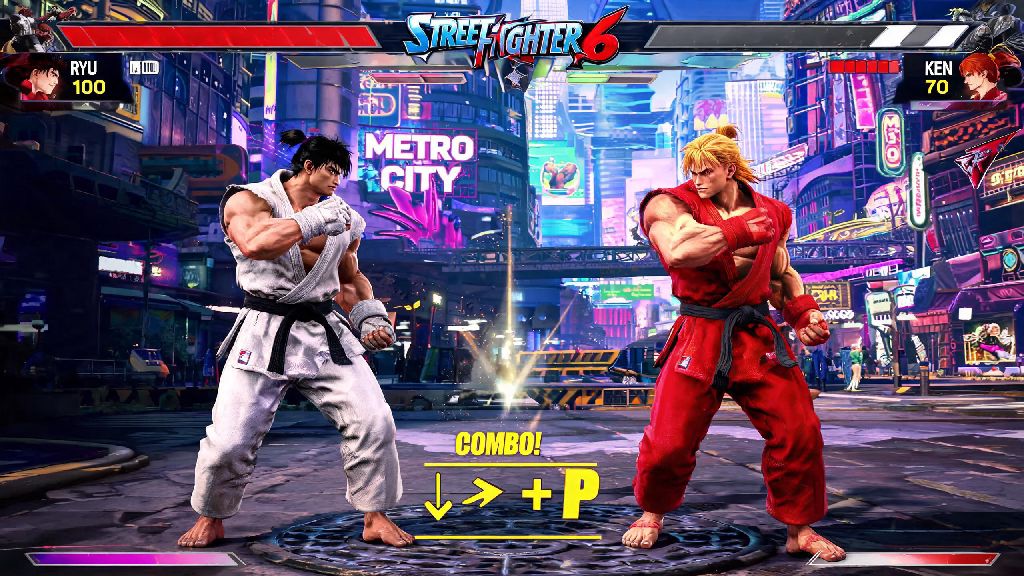
You’re mid-ranked push, about to land a clean Drive Rush cancel into Critical Art to lock in your win, and your focus breaks because of thick black bars framing your screen or a random resolution glitch that shrinks your game view. It’s one of the most frustrating small issues that can completely throw off your rhythm, especially in high-stakes matches where every split second counts. If you’ve been looking for how to make Street Fighter 6 full screen without annoying glitches, this guide covers every platform and common error you might run into, tested by players who’ve put hundreds of hours into ranked and local tournament play.
How to Make Street Fighter 6 Full Screen Across All Platforms
The first and simplest fix works the same across most devices, but there are small platform-specific tweaks you might need to make if the basic in-game setting doesn’t stick. We’ve tested every method listed here to make sure they don’t interfere with online play or trigger anti-cheat flags, so you can use them safely for both casual and ranked matches.
For PC users, start with the in-game setting first. Launch Street Fighter 6, head to the Options menu, select Display Settings, and set Display Mode to Full Screen Exclusive. Make sure the resolution listed matches your monitor’s native resolution, too — picking a lower resolution might cause stretching or black bars even if you have full screen enabled. If the setting won’t save, you can add a launch option through Steam: right click Street Fighter 6 in your library, select Properties, paste -fullscreen into the Launch Options box under the General tab, and restart the game.
For PlayStation 5 and Xbox Series X/S users, you’ll want to check your system display settings before adjusting in-game options. Make sure your console is set to your TV or monitor’s native resolution and refresh rate first, then launch Street Fighter 6, head to Display Settings, and toggle Full Screen on. If you still see bars, double check that you don’t have a system-level zoom or aspect ratio correction enabled on your console.
Common Full Screen Glitches and Quick Fixes
Even if you follow the basic steps, you might run into common issues that stop full screen mode from working correctly. Most of these have super simple fixes that take less than a minute to test, so you don’t have to waste match time troubleshooting for hours.
Black bars on the top or sides of the screen are the most common issue, and they almost always happen when your in-game aspect ratio doesn’t match your display. Street Fighter 6 natively supports 16:9 aspect ratios, so if you’re using an ultrawide 21:9 monitor, you will see black bars by default. There are community-made ultrawide fixes available, but we don’t recommend using them for online play, as they can trigger Capcom’s anti-cheat system and lead to a temporary ban.
Random minimization to desktop on PC usually comes from conflicting background apps or notifications. Turn on Windows Do Not Disturb mode before launching the game, and close any apps with overlay features like Discord, Xbox Game Bar, or even browser video players if you don’t need them open.
Stretched or distorted full screen view is almost always caused by custom scaling settings on your GPU or display. Head to your NVIDIA Control Panel or AMD Radeon Software and turn off any GPU scaling settings that force content to stretch to fit your screen, and check that your monitor doesn’t have a similar feature enabled.
Before you jump into your next match, run through this quick checklist to avoid display issues:
Full Screen vs Borderless Windowed: Which Is Better for SF6?
A lot of players mix up these two settings, and picking the wrong one can lead to higher input lag even if your screen looks like it’s full screen. The right choice depends entirely on how you play the game, so there’s no universal best option for everyone.
Full Screen Exclusive mode is the best pick for anyone playing ranked or competitive matches. It gives the game full control of your GPU, which cuts down on input lag by a few milliseconds and gives you much more consistent frame rates, no random stutters from background apps eating up GPU resources. The only downside is that alt-tabbing to check guides or chat with friends takes a little longer, since the game has to release control of your display first.
Borderless Windowed mode is a better pick for casual players who like to have other apps open while they play, or anyone using a multi-monitor setup. Alt-tabbing is almost instant, and you can easily move your mouse between screens without the game minimizing. The tradeoff is that you’ll get slightly higher input lag, and you might notice occasional stutters if background apps are using a lot of your GPU. If you do use Borderless mode, make sure you set the game resolution to match your display so it fills the whole screen properly.
So if you’re grinding for Master rank or playing in local tournaments, stick to Full Screen Exclusive. If you’re just messing around in World Tour or playing casual matches with friends, Borderless works perfectly fine.
Troubleshooting Persistent Full Screen Errors
If you’ve tried all the basic fixes and your game still won’t stay in full screen, there are a few less common issues you can check for that usually resolve the problem. These fixes only take a few minutes to run through, and they’ll fix almost any remaining display issue.
For PC users, corrupted game config files are the most common cause of persistent display issues. You can verify your game files through Steam to fix this: right click Street Fighter 6 in your library, select Properties, go to the Installed Files tab, and click Verify Integrity of Game Files. Steam will replace any corrupted or missing files, and your display settings should save correctly after that. If you use visual mods for Street Fighter 6, try disabling them temporarily, as a lot of older mods break the game’s display settings after official patches.
Anti-cheat conflicts are another less common but serious issue. Capcom’s anti-cheat system sometimes flags custom resolution or display mods as suspicious, so if you’re using any third-party tools to adjust your display, disable them before playing online. Using these tools can lead to a temporary or even permanent ban from online play, so it’s not worth the risk just to remove black bars on an ultrawide monitor.
For console users, if your game still won’t go full screen, try clearing the game’s cache, or restart your console completely. Temporary system glitches after a patch can sometimes break display settings, and a quick restart usually fixes that. If you’re playing on a 4K 120Hz display, make sure you’re using an HDMI 2.1 cable, as older HDMI cables can’t support higher resolutions and refresh rates, which can cause display issues even if all your settings are correct.
You don’t have to put up with distracting borders or glitchy display when you’re trying to enjoy your favorite fighting game. Taking a few minutes to adjust your settings and run through the checks we outlined will help you get the clean, lag-free display you need for every match. Once you know how to make Street Fighter 6 full screen properly, you’ll be able to focus entirely on reading your opponent’s moves and climbing the ranked ladder, no annoying technical issues getting in your way.