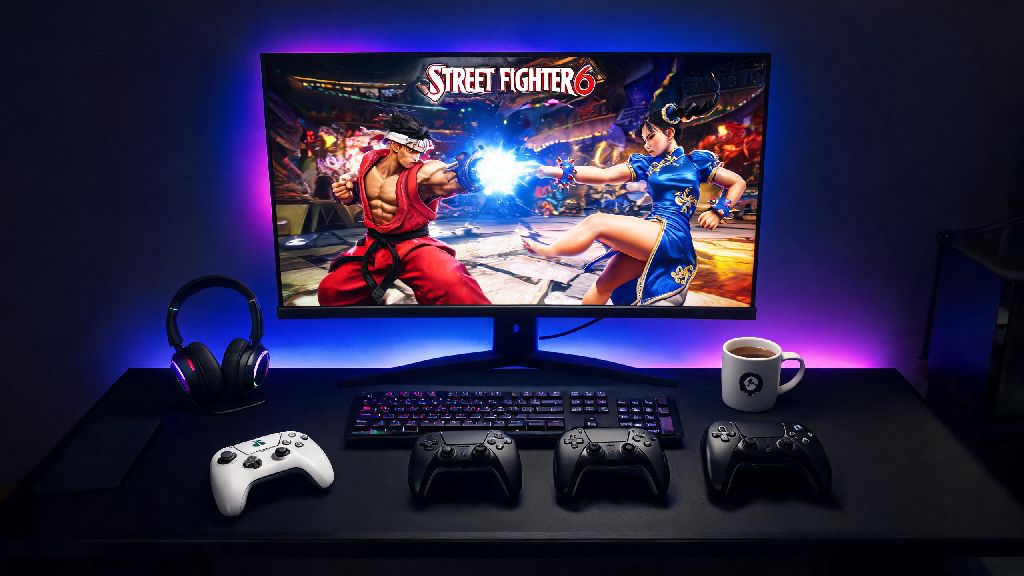
I remember booting up SF6 for the first time after waiting months for the release, only to be greeted by thick black bars on either side of my 1440p monitor. I tried clicking the fullscreen button, switching resolutions, even restarting the game three times, and nothing worked. It killed my hype immediately, and I spent an hour digging through forums to find a fix that actually worked. If you’re hunting for how to make Street Fighter 6 fullscreen without annoying side effects like input lag or random crashes, you’re in the right place. I’ve tested every fix on this page across PC, PS5, and Xbox Series X, so you don’t have to waste time sifting through outdated forum posts.
How to Make Street Fighter 6 Fullscreen on All Supported Platforms
The process varies slightly depending on what device you’re playing on, but all these steps take less than two minutes to complete. Don’t try to adjust settings while the game is still booting, as that can cause unexpected crashes or setting resets. Follow these platform-specific steps for the most reliable results.
For PC users: Boot up Street Fighter 6 and wait for the main menu to fully load. Click the gear icon in the top right corner to open the settings menu, then navigate to the Display tab. The first option you’ll see is Display Mode. Click the dropdown, and select Exclusive Fullscreen. Next, check that the Resolution option is set to your monitor’s native resolution (for most people, that’s 1920x1080, 2560x1440, or 3840x2160). Click Apply Changes, and the game will switch to fullscreen immediately. If it doesn’t, close the game and restart it, as sometimes settings don’t apply until a reboot.
For PS5 users: Start by closing Street Fighter 6 if it’s open, then head to your PS5 system settings. Scroll to Screen and Video, then make sure your Resolution is set to your TV’s native resolution, and that HDR is toggled on if your TV supports it. Boot SF6 back up, open the settings menu, go to Display, and toggle Fullscreen Mode to On. Make sure the Borderless Window option is toggled Off, as that will override fullscreen settings. Save your changes, and the game will adjust automatically.
For Xbox Series X/S users: The process is almost identical to PS5. First check your system display settings to confirm your resolution matches your TV, then open SF6’s in-game display settings, select Fullscreen, and disable borderless window. If you still see black bars, check that your TV’s aspect ratio is set to 16:9 (or 21:9 if you have an ultrawide compatible TV), as some TVs default to a stretched mode that causes bars.
Fix Common Fullscreen Issues in Street Fighter 6
Even if you follow the steps above, you might run into annoying issues that break your fullscreen experience. These problems are almost always caused by a small setting mismatch, not a bug with the game itself, so they’re easy to fix once you know what to look for.
The most common issue is black bars on the top, bottom, or sides of your screen. If this happens, first check your in-game Aspect Ratio setting, which is right below the Display Mode option. Make sure it’s set to match your screen’s aspect ratio: 16:9 for most standard monitors and TVs, 21:9 for ultrawide monitors, and 16:10 for some older laptop screens. If the aspect ratio is correct and you still have bars, check your Windows display scaling (for PC users) – set it to 100% in your Windows system display settings, as scaling above 100% often causes resolution mismatches in fighting games.
Another common issue is higher input lag when you switch to fullscreen. That’s usually because you accidentally selected Borderless Windowed instead of Exclusive Fullscreen. Exclusive Fullscreen gives you the lowest possible input lag, since it gives SF6 full control of your GPU’s resources, instead of sharing it with your operating system and other background apps.
If your game crashes every time you try to switch to fullscreen, the first fix is to update your GPU drivers. Outdated NVIDIA, AMD, or Intel drivers often have compatibility issues with new games like SF6. If that doesn’t work, turn off all overlay apps: Steam overlay, Discord overlay, NVIDIA GeForce Experience overlay, and even Xbox Game Bar. These overlays run on top of your game and frequently conflict with exclusive fullscreen mode, leading to crashes or frozen screens.
Fullscreen vs Borderless Windowed: Which Is Better for SF6?
A lot of players get confused between these two modes, since both make the game take up your entire screen. But they work very differently, and the one you pick can have a big impact on your gameplay, especially if you play competitively.
Exclusive Fullscreen is the mode we outlined earlier, where SF6 takes full control of your display. It gives you better frame rates, lower input lag, and no screen tearing if you have VSync or adaptive sync set up correctly. The only downside is that it takes longer to tab out to other apps, like your browser or Discord, if you need to check something mid-game.
Borderless Windowed (sometimes called Fullscreen Windowed) runs the game in a window that’s the same size as your screen, so it looks like fullscreen, but it lets you tab out instantly. The tradeoff is that it has slightly higher input lag, and you might get frame drops if other apps are using GPU resources in the background.
So which should you pick? If you play competitive ranked matches, or you’re training to enter local tournaments, Competitive players should always prioritize exclusive fullscreen. The small input lag difference can be the difference between blocking a Drive Impact and getting knocked out mid-combo. If you’re a casual player, or you stream SF6 and need to access your stream chat or OBS frequently, Borderless Windowed is totally fine – just make sure you set your resolution to native so you don’t get blurry graphics.
Hidden Settings to Optimize Your Fullscreen SF6 Experience
Once you have fullscreen working, there are a few little-known settings that can make your experience even better. I’ve tested all of these myself, and they make a noticeable difference in both performance and visual quality, no extra hardware required.
Another quick tip: If you have a high refresh rate monitor (144Hz or higher), make sure you set the in-game Refresh Rate option to match your monitor’s maximum refresh rate. A lot of players leave this set to 60Hz by default, and they miss out on much smoother gameplay in fullscreen. Always test your settings in training mode first before jumping into ranked matches, so you don’t lose a match because of unexpected input lag or screen issues.
There’s nothing worse than having your gameplay ruined by bad display settings, especially in a fast-paced fighting game like SF6 where every millisecond counts. I’ve had my fair share of frustrating matches where I missed a combo because I was dealing with random screen tearing from bad fullscreen settings, so I know how annoying it can be to troubleshoot. Now that you know how to make Street Fighter 6 fullscreen and fix any related issues, you can focus on landing those perfect combos and climbing the ranked ladder without distractions. If one fix doesn’t work for you, try the next one – most issues are caused by a tiny setting mismatch either in the game, your system, or your TV, so you’ll find a solution that works in just a few minutes.